This guide therefore explains, with quick configuration examples for Linux and Windows, how to set up filtering at several layers: first in the browser, then at the DNS level with Pi-hole or AdGuard Home and, if needed, at the proxy level with Privoxy. All with one goal: getting rid of invasive advertising on the web.
The farewell to uBlock Origin in Chromium
It is worth understanding the starting point. Manifest V2 was the standard with which Chrome extensions and those of all Chromium-based browsers were built. The most popular blocker in its segment, uBlock Origin, depended on the webRequest API of that format to intercept network requests in real time.
But with the transition to Manifest V3, Google replaced that API with declarativeNetRequest, which is far more limited: a cap on filter rules, no cosmetic filtering in the default mode and no script injection. Basically, Google was limiting the filtering capability of advertising extensions for a fairly clear reason: they are a very costly nuisance for its multibillion-dollar business. And the best example of this is that uBlock Origin disappeared from the Chrome Web Store at the end of 2024 and, in July 2025, Google Chrome disabled it for good.
The final blow came this summer. Chrome 150, distributed at the end of June 2026, removed the last technical trick (kExtensionManifestV2Disabled) that kept old extensions alive, and Chrome 151, in July, erased the remaining indicators. Thus, by August 31, 2026, all Manifest V2 extensions left in the store will be permanently withdrawn. As Chromium is the basis of most browsers, the shockwave reached Edge, Opera, Vivaldi and Brave. The consequence became visible within days: millions of users saw their ad-blocking extension disabled and their web browsing flooded with the invasive advertising they want to escape.
The situation, however, is far from uniform. Firefox maintains Manifest V2 support with no plans to abandon it. Brave keeps uBlock Origin on its own infrastructure. Vivaldi and Opera have built-in blockers. And browsers left at the mercy of the change can turn to Manifest V3 substitutes such as uBlock Origin Lite. The ecosystem has not been left unprotected, but it requires knowing which option to use in each case.
Bitcoin Digital Objects: the standard Bitcoin was missing
The three levels of filtering
Before choosing tools, you have to understand that ad blocking works at three different layers, and that none is sufficient on its own:
- Browser level (extensions or built-in blocking). It acts on the page content. It is the most precise, since it can remove visual elements, block scripts, disable pop-ups and apply complex rules. uBlock Origin, uBlock Origin Lite and the built-in blockers of Brave and Vivaldi operate here.
- Network level (DNS). It filters domain name resolution requests. It works on every device on the network, without installing anything on each one. But it does not see the page; instead it blocks the advertiser's domain, not the ad itself. Pi-hole and AdGuard Home work at this layer.
- Proxy level (HTTP). It sits between the browser and the web servers and can modify requests and responses: remove banners by size, manage cookies or rewrite content. It is the most complex layer to configure. Privoxy is the classic tool here.
The recommended strategy is to stack them. The browser handles precision; DNS covers what the browser cannot reach, such as ads inside applications or the servers shared by tracking networks.
Firefox + uBlock Origin: the reference combination
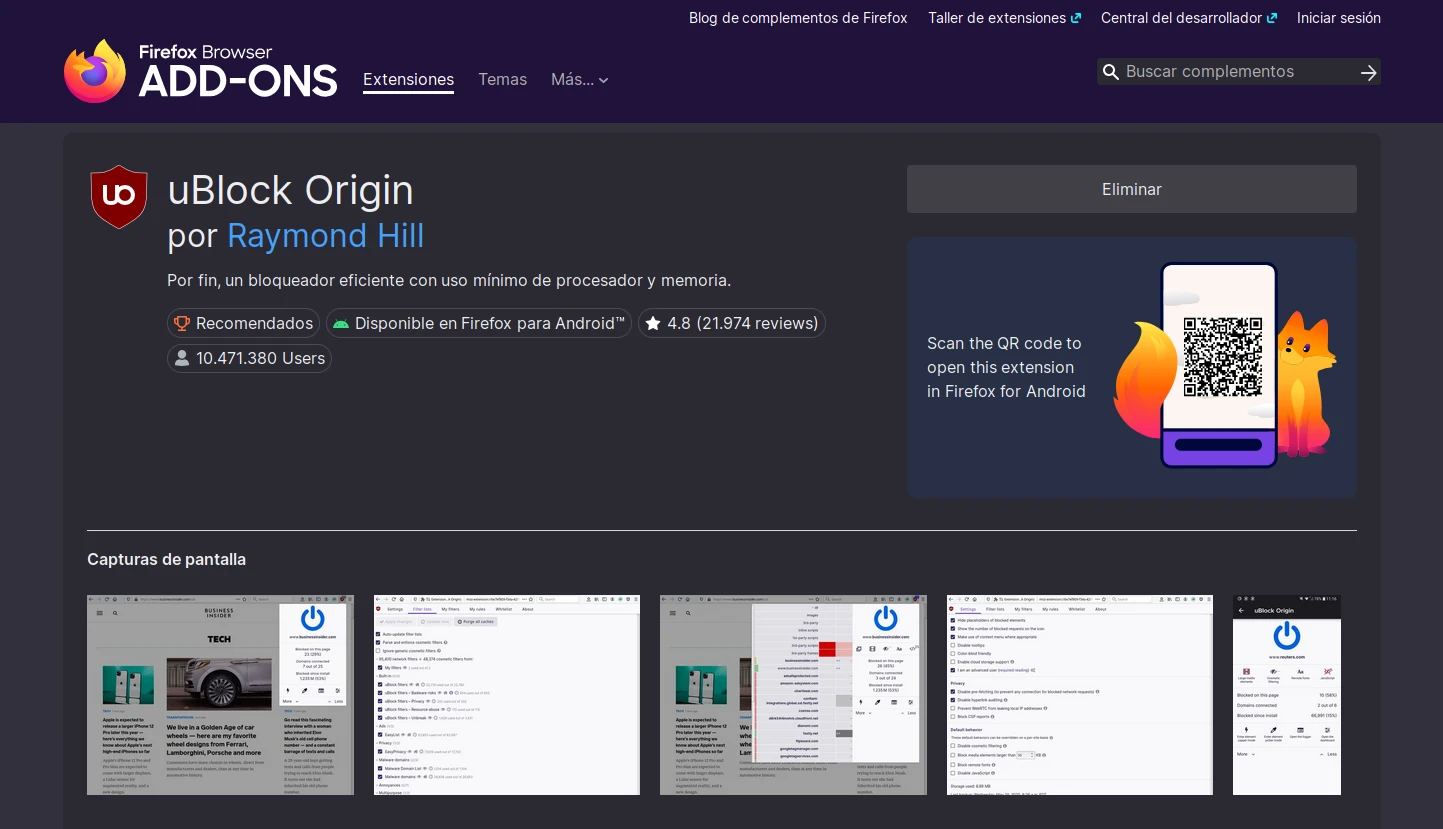
If there is a pair that still works without giving anything up, it is Firefox with uBlock Origin. After all, Mozilla has been the only one of the big platforms to refuse to abandon Manifest V2, and Raymond Hill himself, author of uBlock Origin, documents in his wiki why the extension performs better in this browser: Firefox is able to unmask third-party trackers disguised as first-party domains through CNAME records (the technique many advertising networks use to hide). It therefore waits for uBlock Origin to be ready before sending network requests at startup and reliably avoids the preloading that in Chromium lets traffic slip through before the blocker acts.
Installation is trivial on both systems. Firefox integrates the extension directly from addons.mozilla.org, Mozilla's official store:
- Open Firefox and visit
addons.mozilla.org and search for "uBlock Origin".
- Click "Add to Firefox" and confirm the installation.
- In the toolbar, the shield icon shows the number of blocks on each page. With one click you can disable blocking on a specific site if something breaks.
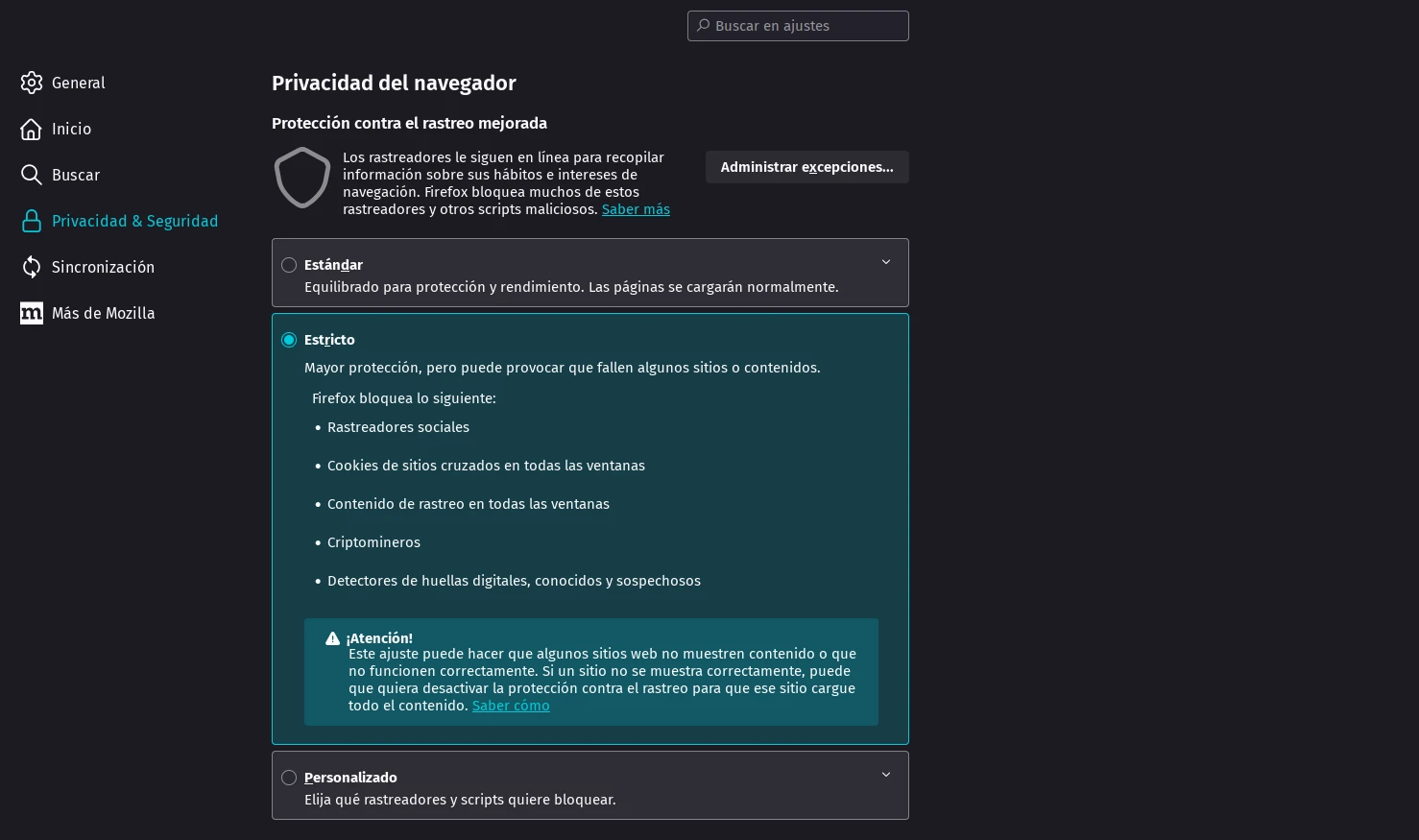
Firefox also includes Enhanced Tracking Protection (ETP). In Settings > Privacy & Security > Enhanced Tracking Protection, the "Strict" mode blocks cross-site tracking cookies, social media trackers, fingerprinting scripts and cryptocurrency miners. The combination of ETP in Strict mode with uBlock Origin is the highest level of protection a popular browser offers without additional configuration.
Brave: the most powerful built-in blocking on the market
Another good option is Brave, a browser that has become the natural refuge for those who want to keep using Chromium without losing protection against advertising. Its Shields system works enabled by default on all pages: it blocks ads and third-party trackers, randomizes the browser fingerprint to prevent fingerprinting, forces HTTPS connections and offers fine-grained per-site control. It applies EasyList, EasyPrivacy, the uBlock Origin project's own lists and lists generated internally by Brave.
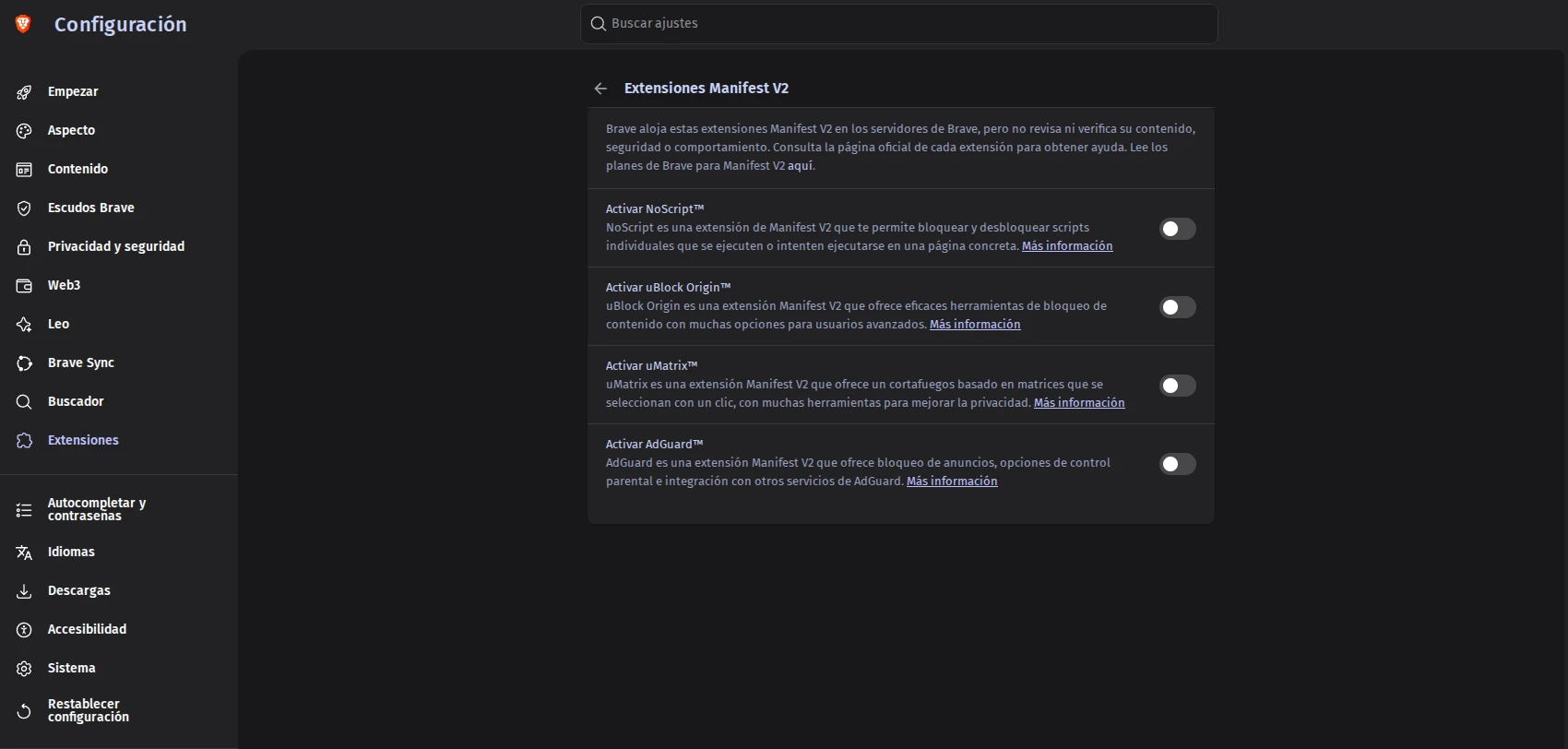
But the lion browser took a step no one else in the Chromium world has taken: since version 1.81, it hosts four Manifest V2 extensions (uBlock Origin, NoScript, uMatrix and AdGuard) on its own infrastructure and offers them with one click. The path is Settings > Extensions > Manifest V2 Extensions. There the four appear ready to enable. The fine print matters: Brave states that it does not review or verify the content of these extensions and that their availability is not an indefinite guarantee, but an effort subject to the changes Google applies and to developers continuing to maintain the code.
For most users, that extra layer is not even necessary. Shields in "Standard" mode already covers the bulk of blocking; "Aggressive" mode also adds first-party ads, with a greater risk of breaking some page. Per-site configuration is adjusted from the lion icon next to the address bar.
CLARITY: the crypto industry's last cartridge to recover lost business
Vivaldi: fine-tuning the built-in blocker
Vivaldi includes a native blocker based on Adblock Plus syntax, expandable through filter lists. The advantage over an extension is that it is built into the browser and can have less impact on performance, and that it works the same on mobile, where extensions cannot be installed.
After the death of uBlock Origin in Chromium, Vivaldi has been the subject of numerous guides on how to get the most out of its blocker, with uneven results: most of the "recommended configurations" circulating are redundant or incompatible with its engine, which does not interpret uBlock Origin's advanced rules.
The sensible configuration, in Settings > Privacy & Security > Tracker & Ad Blocking, is this:
- Enable tracker and ad blocking.
- Enable "Strict blocking" to improve effectiveness.
- In "Manage sources", for trackers: enable
EasyPrivacy.
- For ads: enable
Spanish (EasyList Spanish) and Remove annoyances (Fanboy Annoyance). The latter already includes the cookie list rules, so there is no need to enable it separately.
If you want to go a step further, you can add sources that cover specific gaps: the AdGuard CNAME list for trackers hidden behind CNAME records, two security lists from malwarefilter.gitlab.io, and the Brave First-Party and Brave First-Party Regional lists for advertising served as first-party content. The result comes close to uBlock Origin's competition, though it does not reach its flexibility.
For those who do not want complications, Vivaldi itself recommends in its guide sticking with the default configuration and adding uBlock Origin Lite: that combination works better than any other based solely on lists.
Chrome, Edge and Opera: the era of uBlock Origin Lite
In browsers that depend entirely on Google's engine, the reasonable option is uBlock Origin Lite, the Manifest V3 version of the blocker. It is not the same as the original: it has a rule limit that forces you to choose which lists to load, it does not do cosmetic filtering in the default mode and it does not allow script injection. For most daily browsing it is enough, but it leaves gaps that did not exist before.
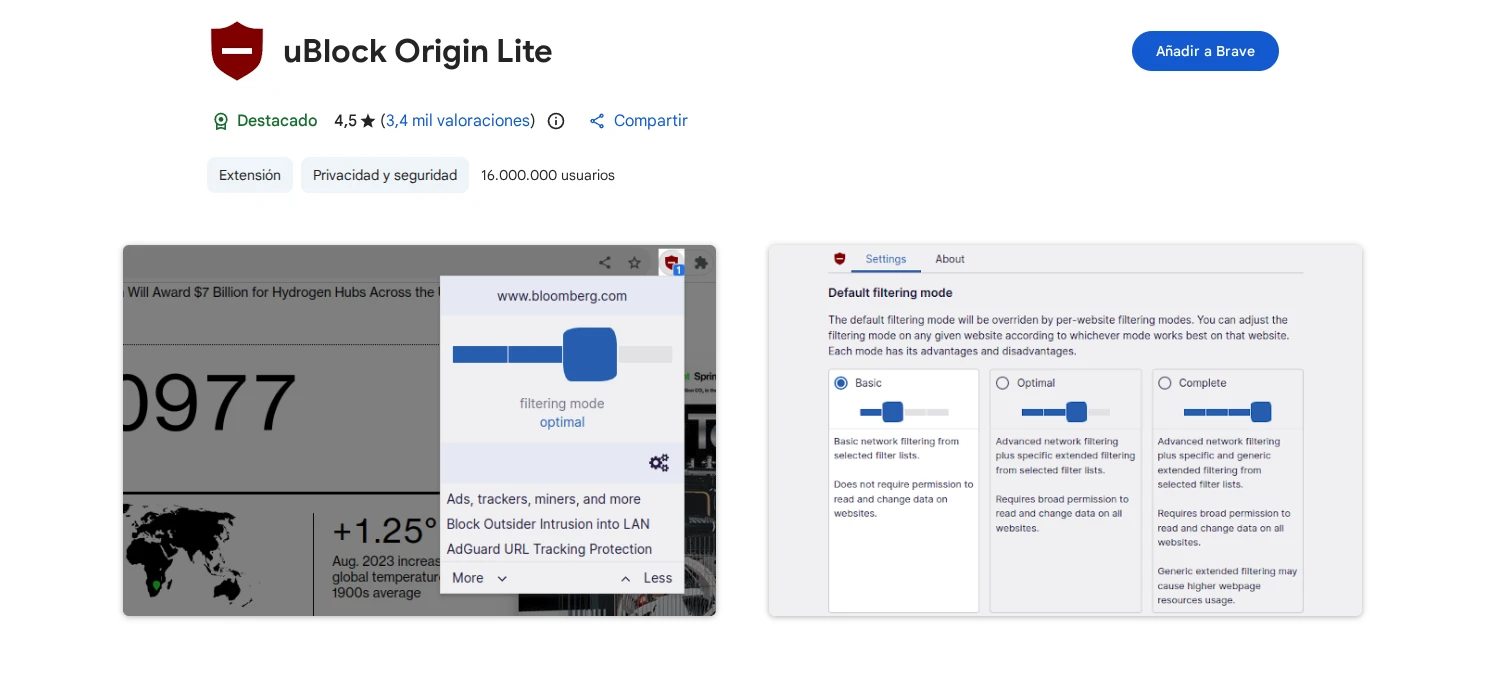
Edge began disabling uBlock Origin in February 2026 and follows Google's schedule. Opera is the exception: it maintains Manifest V2 support as long as it is "technically reasonable", according to its own communication, so Opera users can still use classic uBlock Origin for now. But the transition to Manifest V3 in Opera is also a matter of time, and the recommendation to try substitutes still stands.
Level 2: blocking across the whole network with Pi-hole
Moving up a level means no longer protecting a browser but protecting the entire network. Pi-hole is a "DNS sinkhole": once installed on an always-on machine in your home, it acts as the DNS server for all devices. When a device tries to resolve the domain of an advertising network, Pi-hole responds with a null address and the connection is never established. It works in mobile applications, smart TVs and any device that uses the network, with a feature no browser blocker has.
Version 6, released in 2026 (FTL v6.7, Web v6.6 and Core v6.4.3 in July), keeps its promise of installation in under ten minutes. On Linux:
curl -sSL https://install.pi-hole.net | bash
During installation, the wizard asks for the upstream DNS server and the blocklists. When it finishes, the web interface is available at http://pi.hole/admin (or at the machine's IP) and lets you see real-time statistics: today's queries, blocked domains, blocking percentage and the most queried sites on the network. From there you manage whitelists and blacklists, you can add additional lists with a single click and enable its built-in DHCP server so that all clients use Pi-hole automatically without touching the router.
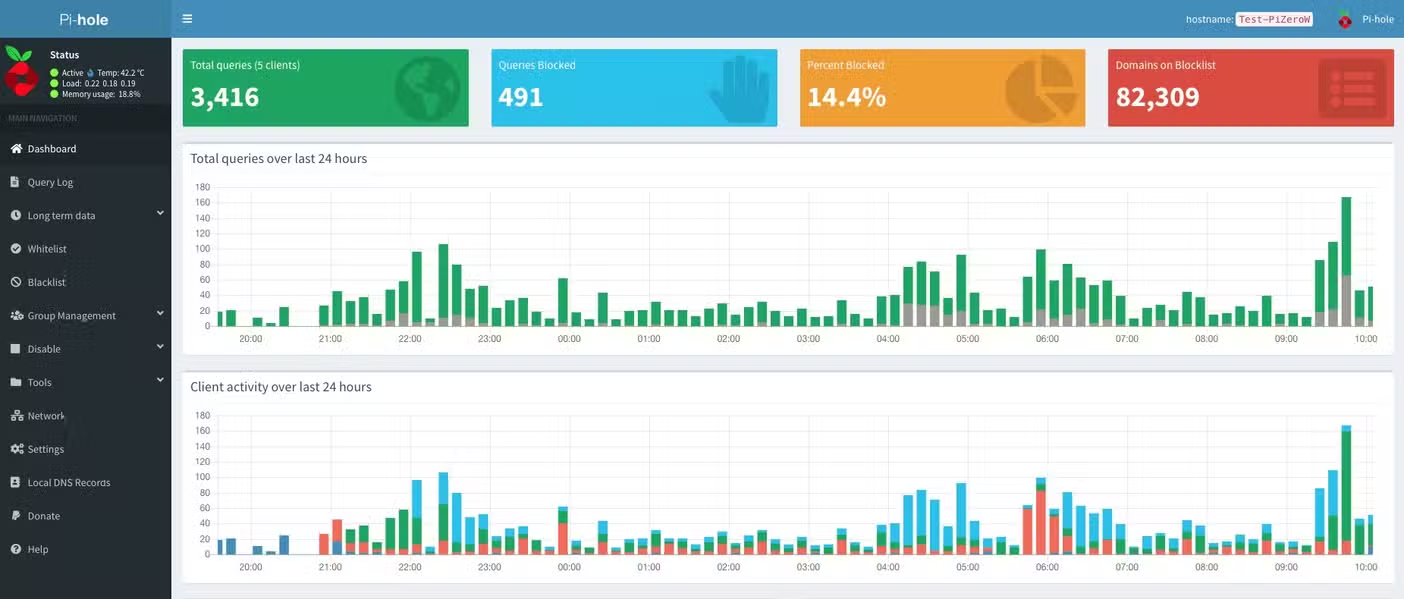
The requirement is a Linux machine or a Raspberry Pi. On Windows there is no native installation: the options are Docker or a virtual machine. With Docker, the configuration is fairly simple and requires only one command:
docker run -d --name pihole -e TZ="Europe/Madrid" \ -p 53:53/tcp -p 53:53/udp -p 80:80 \ --restart=unless-stopped \ pihole/pihole:latest
Pi-hole's advantage over other solutions is its maturity and its huge community (almost 60,000 stars on GitHub), a large documentation base and hundreds of verified lists. The disadvantage is that for certain advanced functions you have to add additional software: for example, it does not serve encrypted DNS (DNS-over-HTTPS or DNS-over-TLS) on its own.
The attack on Coldcard is still active and losses could reach $130 million
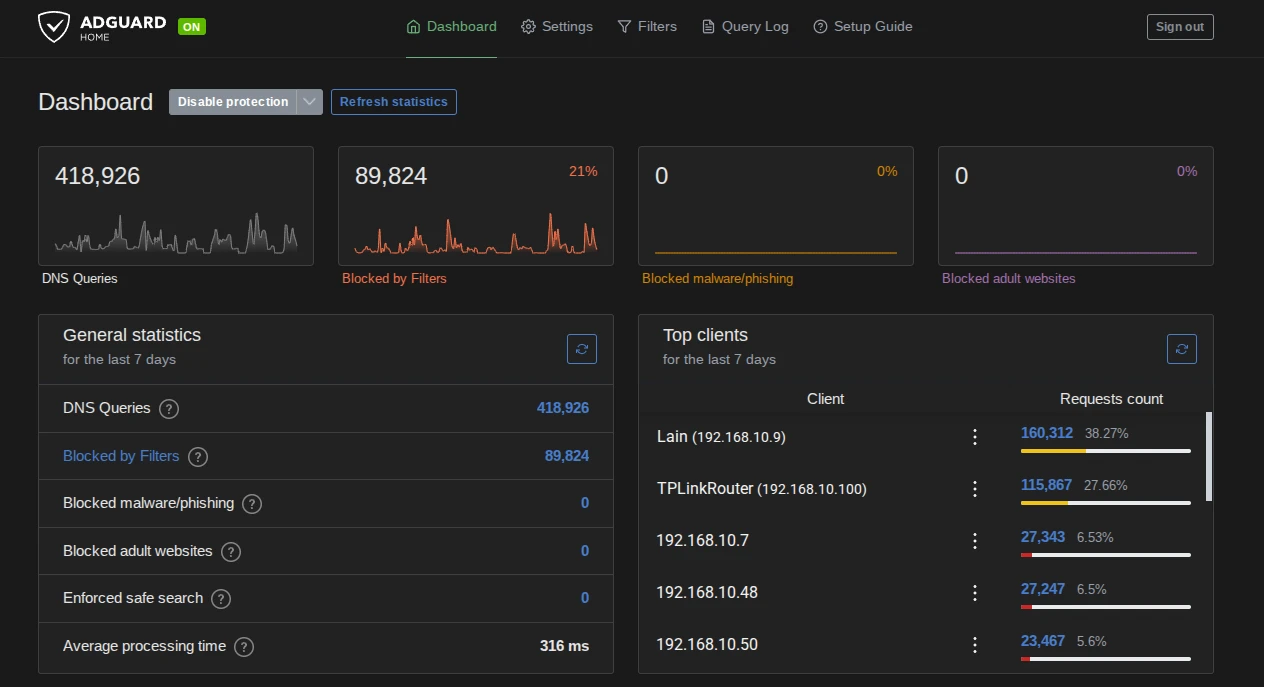
AdGuard Home does the same as Pi-hole, but with a key difference: it is a native cross-platform application, with binaries for Linux and Windows, and it ships with many features built in that in Pi-hole require additional setups. The current stable version, 0.107.78, arrived on July 13, 2026 with a good number of security patches.
On Linux, automatic installation is done with a single command:
curl -s -S -L https://raw.githubusercontent.com/AdguardTeam/AdGuardHome/master/scripts/install.sh | sh -s -- -v
On Windows you download the binary from the GitHub releases page, run AdGuardHome.exe with administrator permissions and open the wizard at http://localhost:3000, which guides you in two steps: choosing the interface and listening ports. To start it as a service:
AdGuardHome.exe -s install
The advantages over Pi-hole are concrete and relevant for the average user:
- Built-in encrypted DNS. It can act as a DNS-over-HTTPS, DNS-over-TLS and DNS-over-QUIC server, and use these same protocols as upstream servers.
- Per-device control. It allows configuring different lists and policies per client, useful when there are children at home.
- Parental control. It blocks adult content domains with one click and forces safe search in search engines.
- HTTPS interface. The administration panel can be served encrypted without additional configuration.
- It works without administrator permissions on Linux via
setcap, something Pi-hole does not allow.
That is why it is my personal security choice. As it blocks only by domain, AdGuard Home shares Pi-hole's same fundamental limitation: it cannot do cosmetic filtering or remove ads served from the very domain you visit. That is why its best use is complementary to the browser blocker, not a substitute.
Privoxy: the proxy for those who want absolute control
The most advanced layer is the filtering proxy. Privoxy, in its 4.2.0 version, is a web proxy that generally runs on localhost:8118 and filters HTTP requests before they reach the server and responses before they reach the browser. Its power lies in the action and filter files, written with regular expressions, which allow controlling ads, cookies, headers and content, page by page.
Basically, Privoxy works as a filter between your PC and the internet. What your PC sends to the internet is intercepted so that the information matches the privacy rules you want to apply to the connection. And the server's response to your PC suffers the same fate: it is intercepted and altered to meet your security and privacy requirements. Thanks to that power, Privoxy is widely used by users who want the maximum possible privacy; above all, they use it alongside Tor and I2P, two anonymous networks developed to protect activists and provide the greatest possible privacy.
Microsoft will launch a Copilot app for consumers and businesses this year
Installing Privoxy
Installing Privoxy is fairly simple. On Debian, Ubuntu and derivatives, one command is enough:
sudo apt install privoxy
On Windows, meanwhile, it is installed with the standard installer from the Privoxy page, which registers it as a service.
In both cases, to use filtering you have to tell the browser to use the proxy. If you are using Firefox: Settings > General > Network Settings and point the HTTP proxy to 127.0.0.1 and the port 8118. On Windows, from Settings > Network & Internet > Proxy, enable "Use a proxy server" with 127.0.0.1:8118. The rest is simply configuring the service to suit your needs.
Privoxy stands out where DNS and extensions fall short: removing banners by their standard size through the banners-by-sizefilter, managing the cookie lifecycle, hiding headers that reveal system information and rewriting content in real time.
It also supports HTTPS inspection, although that means installing its root certificate on the system and is an advanced operation many prefer to avoid. The positive side is that with that support, even applications that encrypt their connections cannot bypass the filtering; everything that goes through the proxy will be filtered as you want.
Its counterpart is the learning curve: the default configuration already blocks most ads, but adjusting your own rules requires familiarity with regular expressions. It is the right tool for those who want to understand and control every byte that leaves their machine, not for those looking for a one-click solution. A practical option is to combine Privoxy with a DNS sinkhole: DNS handles the volume, and the proxy handles precision.
The recommended recipe according to your profile
As you can see, there is no single correct solution; it depends on what you want to protect and the effort you are willing to invest:
- A single machine, minimum effort. Firefox with uBlock Origin, or Brave without installing anything. Firefox's Strict Enhanced Tracking Protection mode or Brave's Aggressive Shields complete the package.
- A single machine, no Chromium at all. Firefox with uBlock Origin and Strict ETP is today the most powerful combination available.
- You want to stay on Chromium. Brave with Shields in Aggressive, or Vivaldi with its tuned blocker and uBlock Origin Lite as a complement.
- The whole house, several people and smart TVs. Pi-hole on a Raspberry Pi or a Linux machine, or AdGuard Home if you want encrypted DNS and parental control out of the box. Set them as the router's DNS and forget about each device.
- Absolute control and willingness to learn. Add Privoxy and configure it as a proxy in the browsers, chained to the DNS sinkhole.
The battle for open AI: Google, OpenAI and Anthropic propose restricting it
It is up to you to choose the recipe that best suits your needs and web usage, but one thing is clear: no matter how hard the giants push to keep invasive advertising, and even make it more invasive still, the free software community will always have an answer to reduce that power.